Evolving Enterprise AI Model Management
Designing a scalable model-management experience as Tabnine expanded from managed models to BYOAI, multiple AI experiences, and team-level governance.
- Enterprise AI
- Model Management
- BYOAI
- Governance
Executive summary
- The problem
- As AI evolved, a relatively simple model list grew into a system connecting model source, product availability, provider-specific configuration, team access, and developer choice. Connecting customer-managed models still depended on Tabnine-assisted setup, creating repeated dependency as customers wanted to add more models.
- My contribution
- As Tabnine’s Solo Product Designer, I owned the experience end to end — from product and flow architecture through UX/UI, the Design System, and working front-end implementation.
- The outcome
- A unified model-management experience supporting Tabnine-managed and customer-managed models, guided self-service configuration, provider- and model-specific requirements, team-level availability, and developer model choice.
Overview
A model-management system that had to evolve with AI.
When I joined Tabnine, model management was relatively straightforward. Tabnine provided the models, and Admins decided which ones were available.
Then the AI landscape started changing fast. New models appeared constantly, Tabnine expanded into Chat and later Agent, enterprise customers wanted to bring their own models, and eventually different teams needed access to different model sets.
The design challenge changed with the product: this was no longer a list of models. It was becoming a management system.
Challenge
More models created more connected decisions.
Model management was no longer a simple on/off decision. An Admin’s choices started affecting several connected dimensions of the experience.
Source
Tabnine-managed or customer-managed.
Product
Where the model can be used across the product.
Access
Organization-wide or specific teams.
Configuration
Provider- and model-specific requirements.
The challenge wasn’t adding another setting. It was keeping an evolving system understandable as one product.
Why BYOAI
From assisted setup to self-service.
Before BYOAI, customers who wanted to connect their own models depended on Tabnine to help set them up. Someone from Tabnine had to support the connection process, and every additional model created the same dependency again.
At the same time, new AI models were appearing at an increasingly fast pace, making it more important for customers to be able to connect new models without contacting Tabnine each time.
We wanted to move that capability into the product itself and allow enterprise Admins to connect and manage their own models directly.
System decision
One mental model. Two management modes.
One of the important design decisions was not to turn BYOAI into a separate product area. From an Admin’s perspective, these are all models. Some are provided and managed by Tabnine; others are connected and managed by the customer.
I kept both inside the same Models experience and reused the same terminology, interaction patterns, and visual language wherever possible. This introduced a fundamentally different way of connecting models without asking Admins to learn a second model-management system.
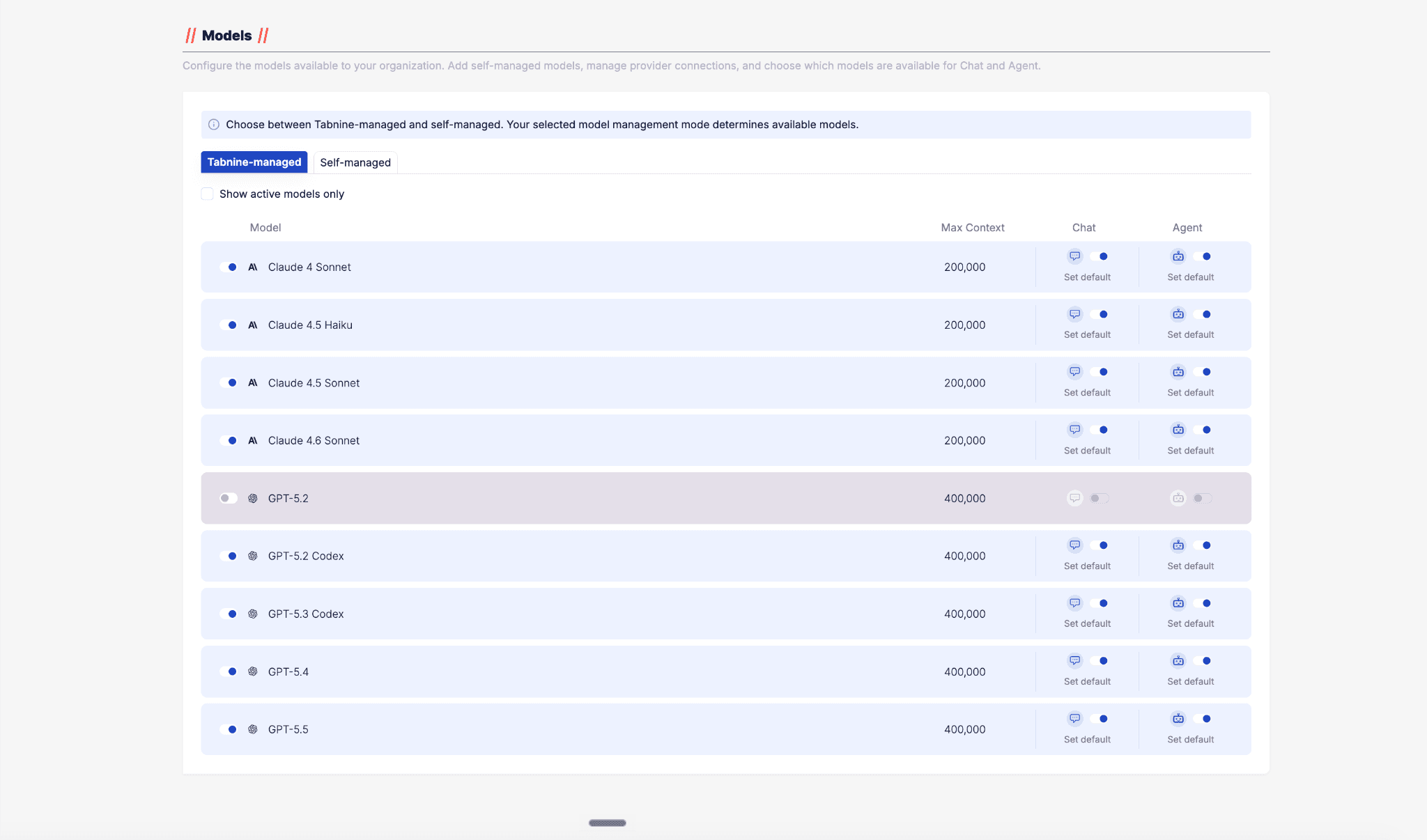
Models provided by Tabnine, managed within the same Models experience.
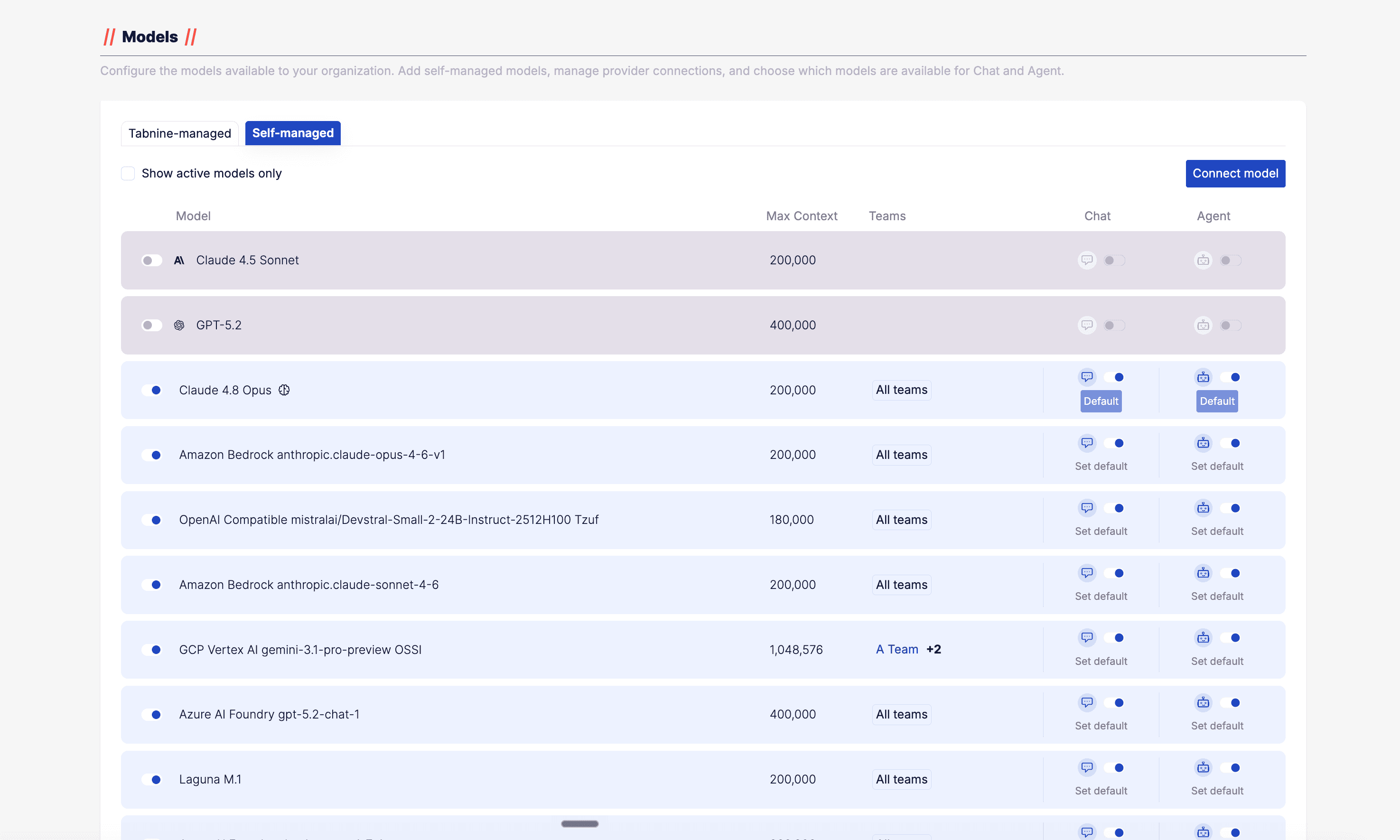
Customer-connected models, with additional configuration, validation, and availability controls.
Technical complexity shouldn’t become navigation complexity.
The same surface, then and now.
Drag the divider to compare the original Models experience with the expanded self-managed model experience.
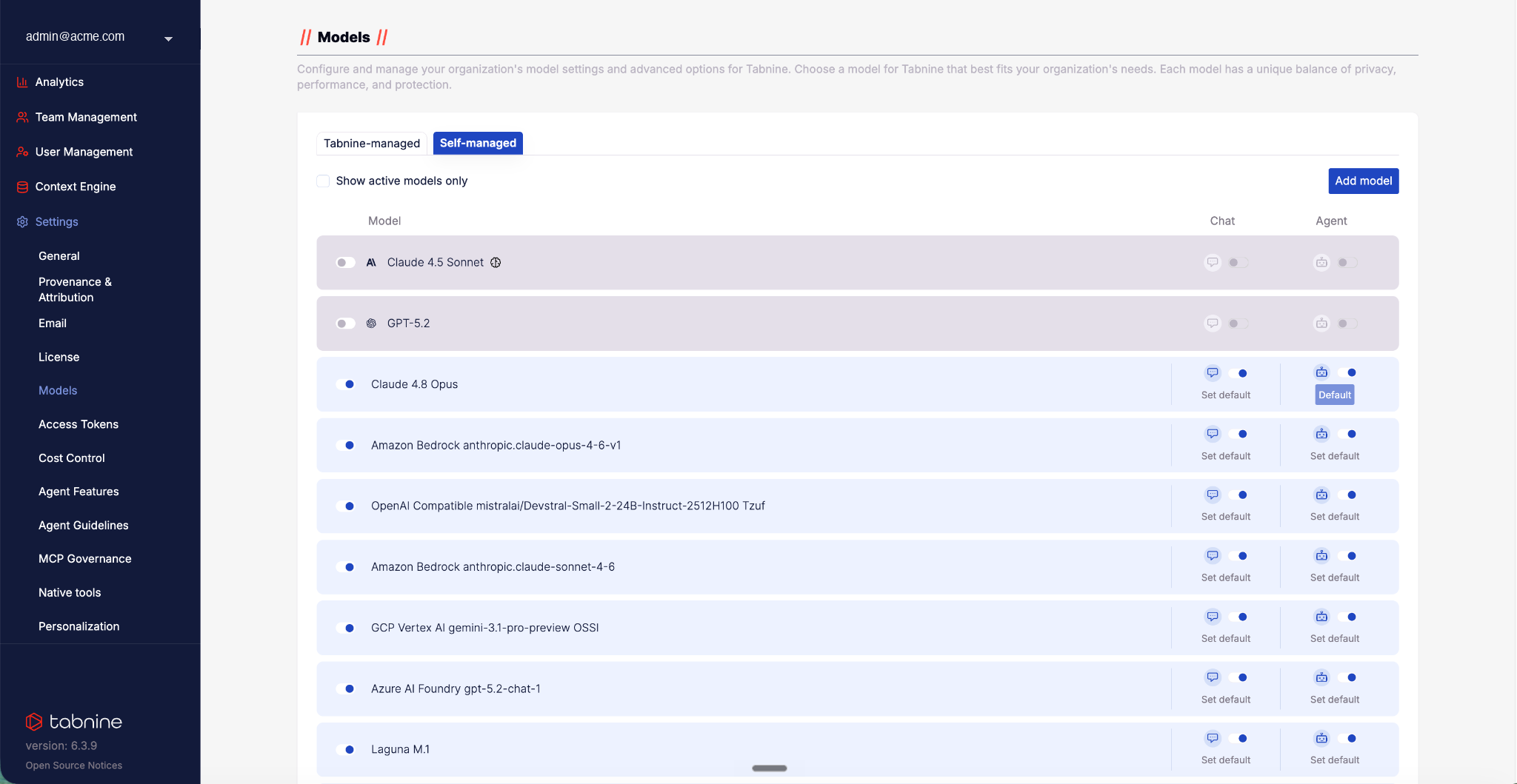
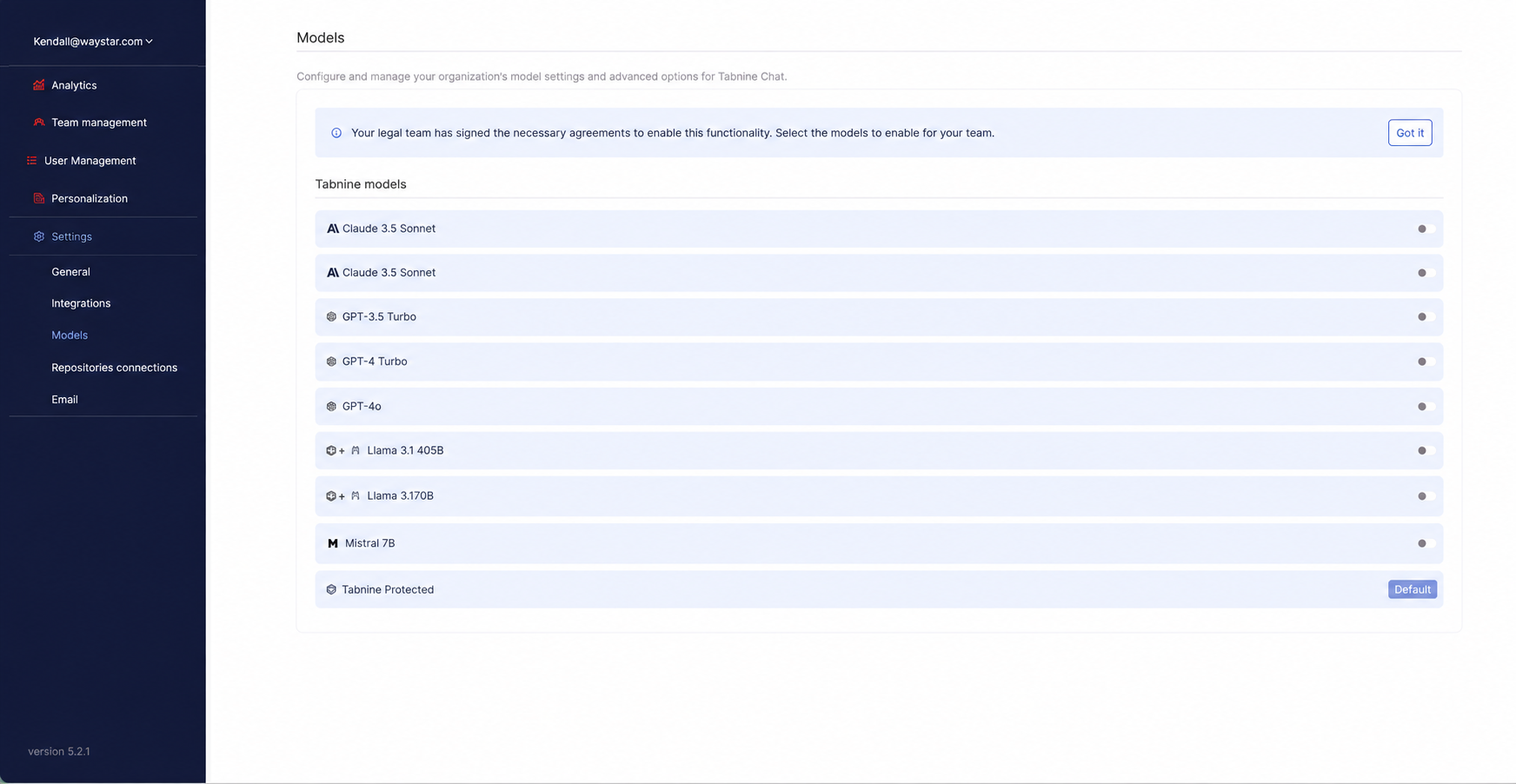 BeforeAfter
Before: admins mainly managed Tabnine-provided models.
After: admins can also configure and manage customer-owned models within the same Models experience.
Flow architecture
The configuration wasn’t linear.
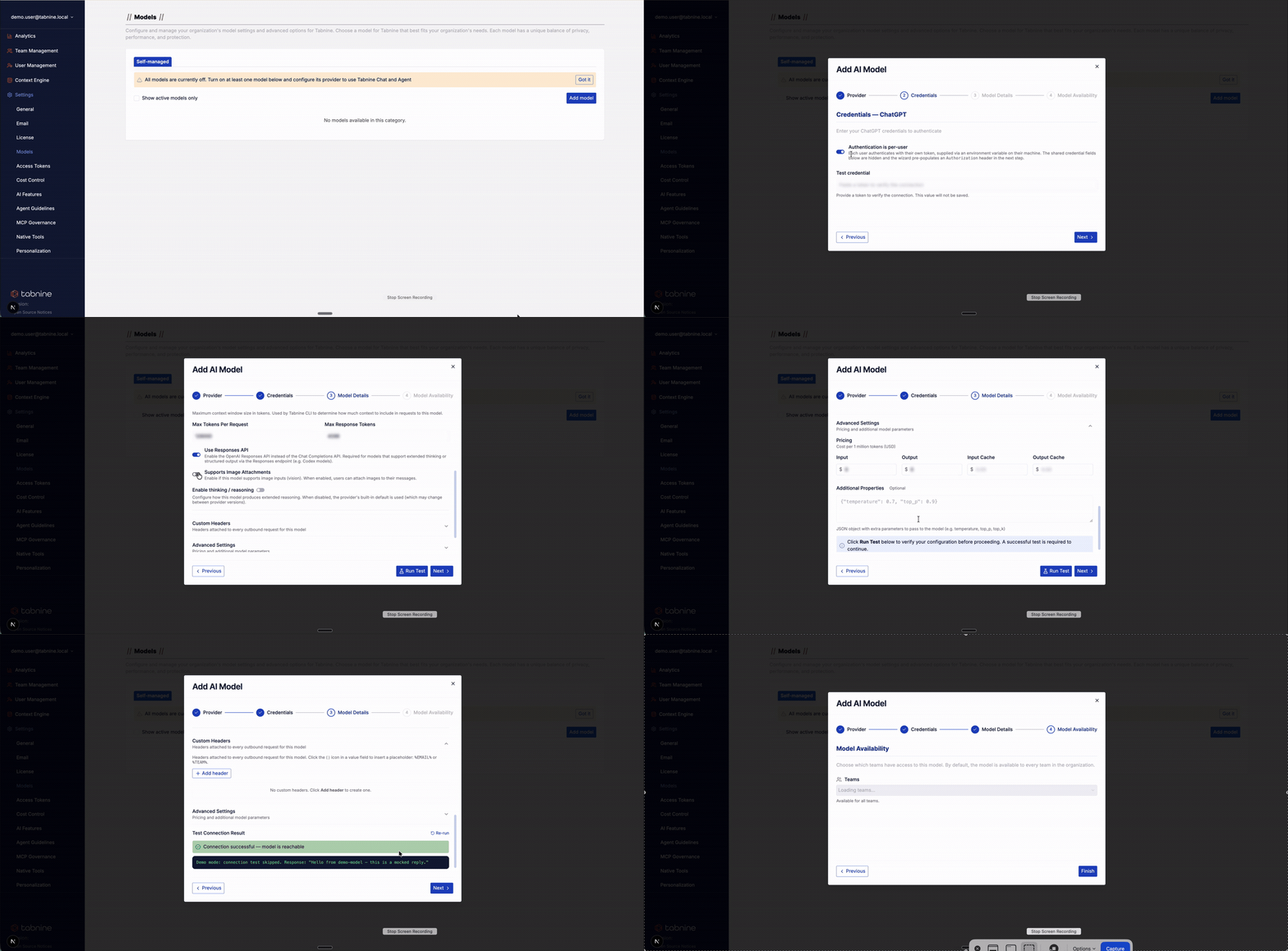
Connecting a model involved several dependencies. The provider selected early in the process affected what information was needed later, and different providers required different setup details.
Before designing individual screens, I mapped those dependencies to understand what needed to happen first, which decisions affected later steps, and what information was relevant at each stage.
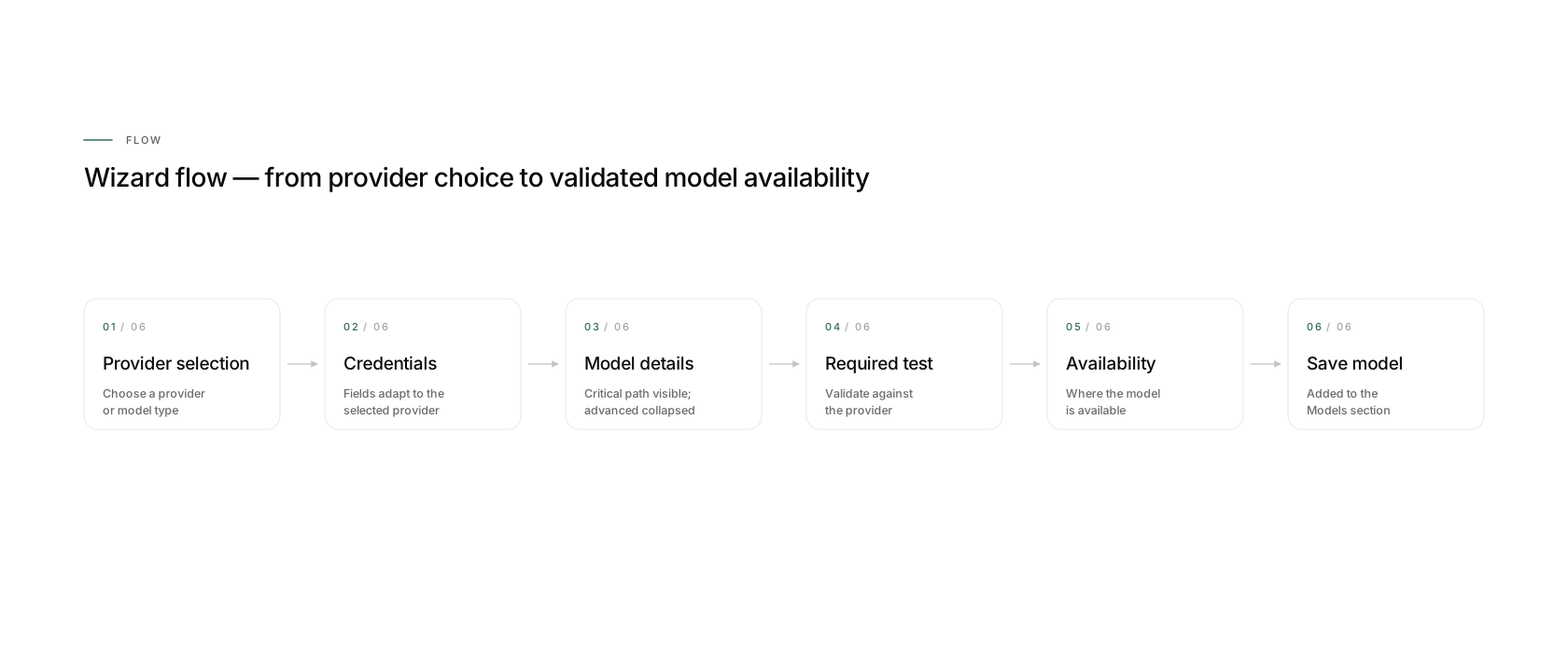
Wizard
A guided flow instead of one long form.
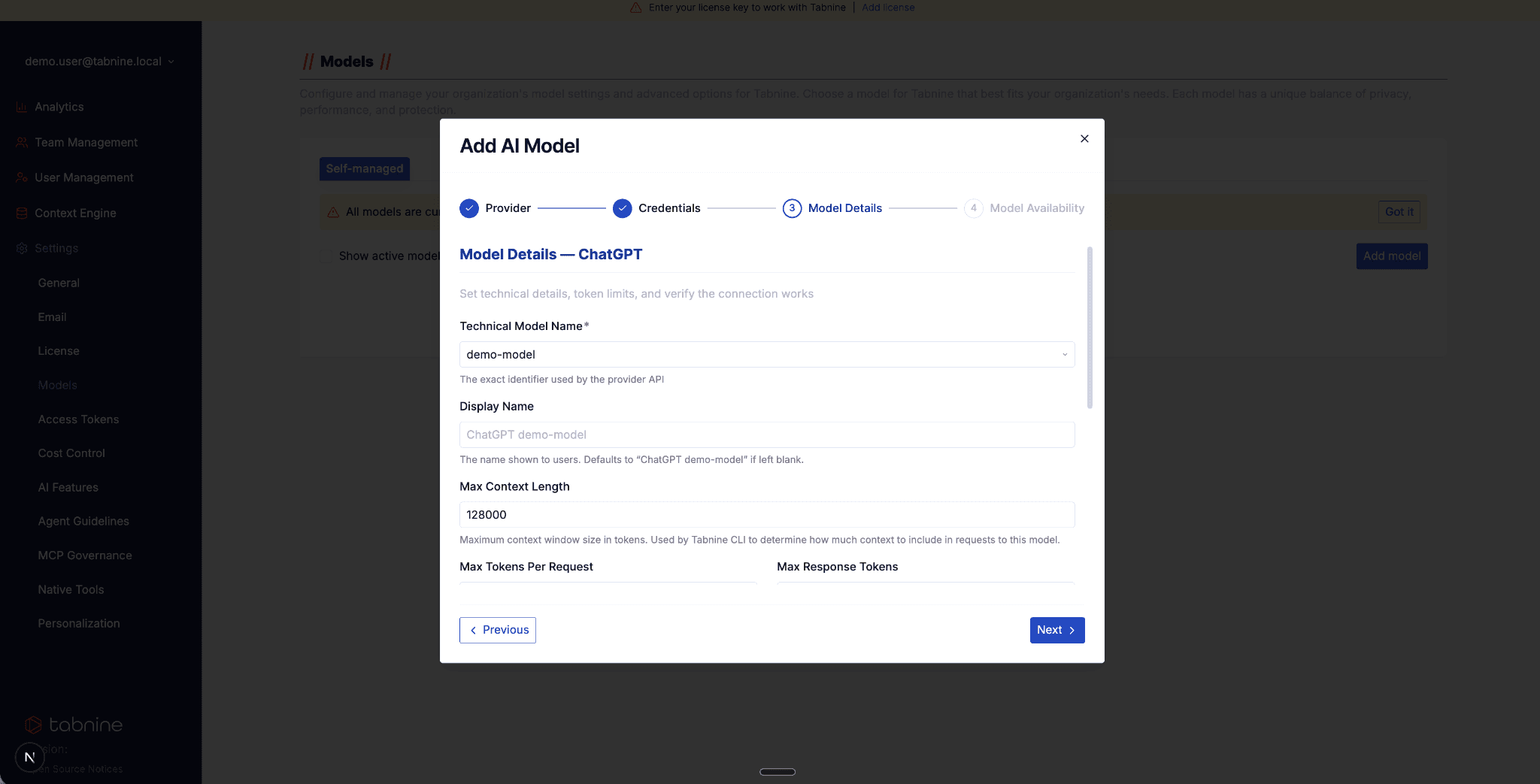
Once the dependencies were mapped, a single long form was clearly not the right structure. I designed the setup as a guided Wizard using progressive disclosure: each step focuses on what is relevant at that point, while the overall structure remains predictable as requirements change.
Validation was built into the flow, allowing Admins to verify the model connection before making it available to users.
Flexible configuration
The structure stays familiar. The details change.
Different providers and models did not require exactly the same information. Instead of designing a different experience for each one, I kept the overall structure and interaction model consistent while adapting the fields to what was relevant for the selected provider and model.
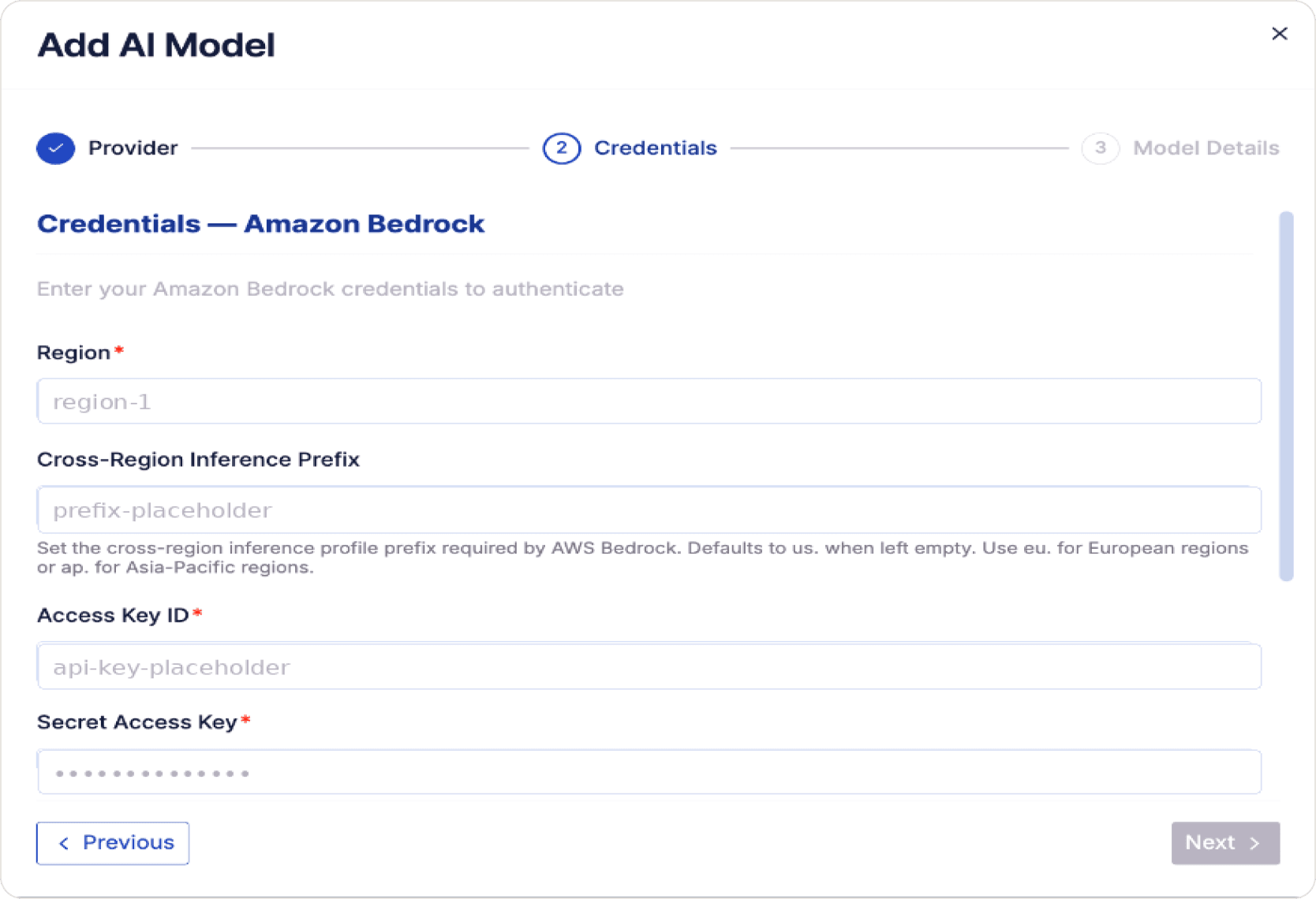
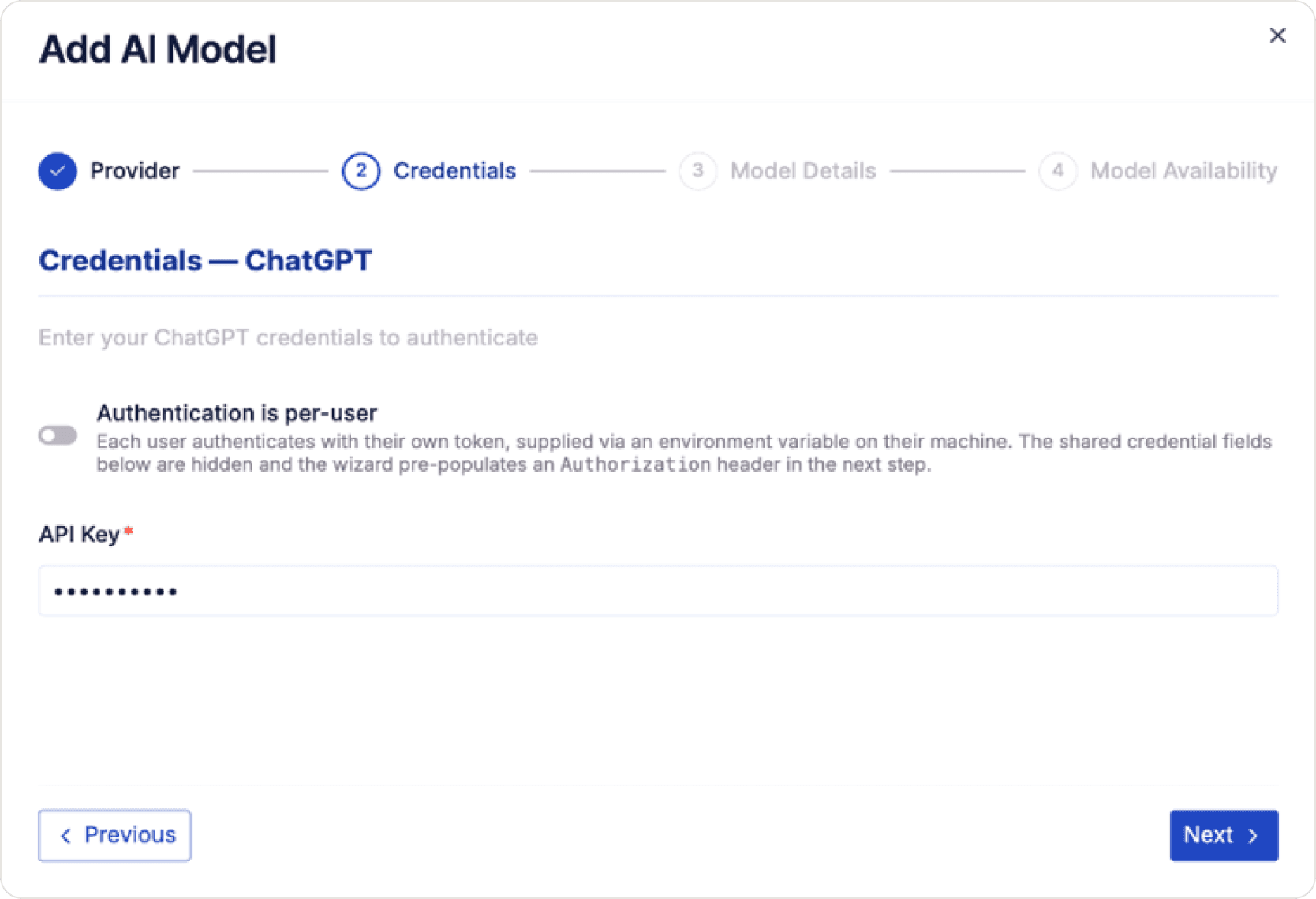
Model-specific configuration
Some models also included additional configuration, such as Max Context Length. These settings appeared only where they were relevant to the selected model.
Trade-off
Some complexity couldn’t be automated away.
Our ideal was to make model connection as automated as possible. In practice, some information could not be retrieved automatically. Admins still needed to get certain values from another system and enter them manually during setup.
This created unavoidable context switching, but it was a technical constraint we needed to accommodate rather than hide.
Access & governance
Model availability became part of the configuration.
Connecting a model was only part of the problem. Admins also needed to control who inside the organization could use it.
Availability became part of the model itself: an Admin could expose it organization-wide or to selected teams, both during setup and later through Edit Model. The current scope was then surfaced directly in the Models list.
Team Leads worked within those organization-level boundaries for the teams assigned to them, rather than redefining the organization-wide model set.
Developer experience
Admins define the boundaries. Developers choose within them.
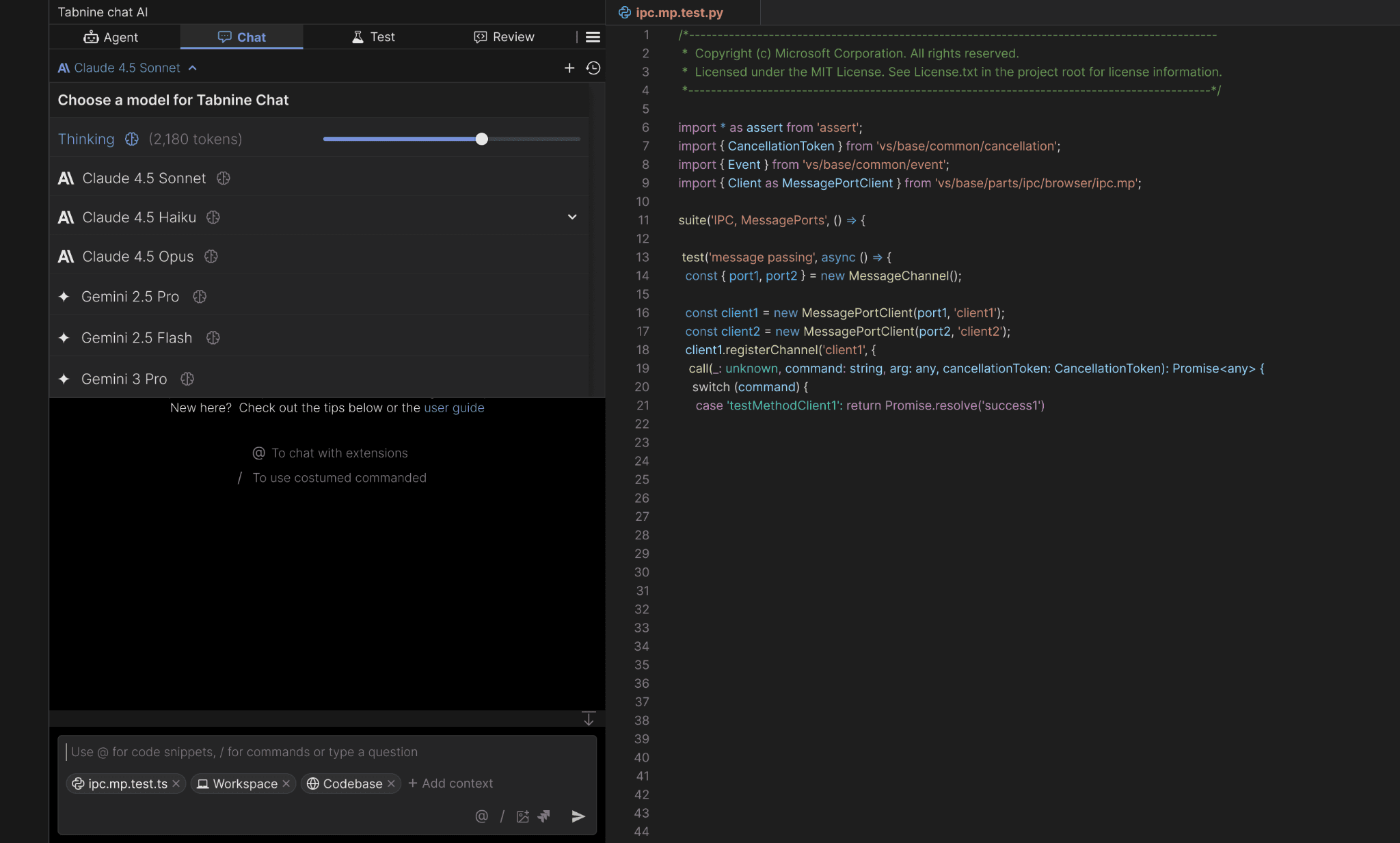
The Admin experience ultimately shaped what developers saw inside their IDE. Admins defined the available model set; developers chose the model they wanted to work with from that approved set.
Design to code
Design to code was part of my workflow.
Model management was not an isolated Wizard project. As Tabnine’s Solo Product Designer, I continued designing this experience as both the product and the AI ecosystem evolved, and my workflow did not end in Figma.
I worked with a local clone of the real product repository and used Claude Code with the existing code and product components to build the front-end experience directly in that environment.
I opened Pull Requests for Engineering, who continued with backend integration, testing, and production delivery. This gave Engineering a working front-end reference based on the actual product rather than relying only on static design files.
I also used tools such as Figma Make when they helped me explore interaction ideas, but the important shift was broader: design and implementation were part of the same working process rather than two disconnected handoffs.
The system today
What started as a model list became a connected management system.
Over time, the experience grew from a relatively simple organization-level model list into a system supporting Tabnine-managed and self-managed models, multiple AI experiences, provider- and model-specific configuration, team-level availability, and developer model choice.
The goal throughout that evolution was not to create a new solution for every requirement, but to keep absorbing new capabilities into one coherent management experience.
Reflection
Designing for AI means designing for change.
The model ecosystem changed repeatedly while I was working on the product. New models, providers, product capabilities, and governance requirements kept arriving.
The biggest lesson I took from this work was to design beyond the requirement directly in front of me — creating systems and interaction patterns that could continue evolving as the product changed.
If I approached this work again today, I would also want to be more directly involved in customer research and validation. Much of the customer feedback reached me through Product and Customer Success; I would want a more active role in those conversations and testing cycles.
The experience reinforced something I now bring into every complex product I design: build for the system you know today, but leave room for the product it may need to become tomorrow.